If you’ve been trying AI video generators lately, you’ve probably noticed something: most comparisons are either too technical (“latent consistency,” “temporal coherence”) or too vague (“this one looks better”). What creators actually need is a simple, practical answer:
- Which model should I use for my goal?
- What inputs do I have (text, image, or video)?
- How do I get a good result fast without wasting attempts?
In this guide, we’ll compare Veo 3.1 and Luma Ray2 for real-world AI video generation—then show you how to use both smoothly inside DreamMachine AI.
Quick Start: The 30-Second Decision
Here’s the fastest way to pick.
Choose Veo 3.1 if you want…
- Stronger text-led storytelling with clearer prompt-following
- A smoother path to audio-ready videos, especially if you want to experiment with Veo 3.1 native audio generation
- A “cinematic” feel that’s great for trailers, story scenes, and multi-shot style clips
Start here: AI video generation with Veo 3.1.
Choose Luma Ray2 if you want…
- Strong results when you begin from an image or existing footage
- Faster creative iteration, stylized lighting, and motion-driven clips
- Flexible workflows like Ray2 video-to-video and the Ray2 image-to-video model
Start here: AI video generation with Luma Ray2.
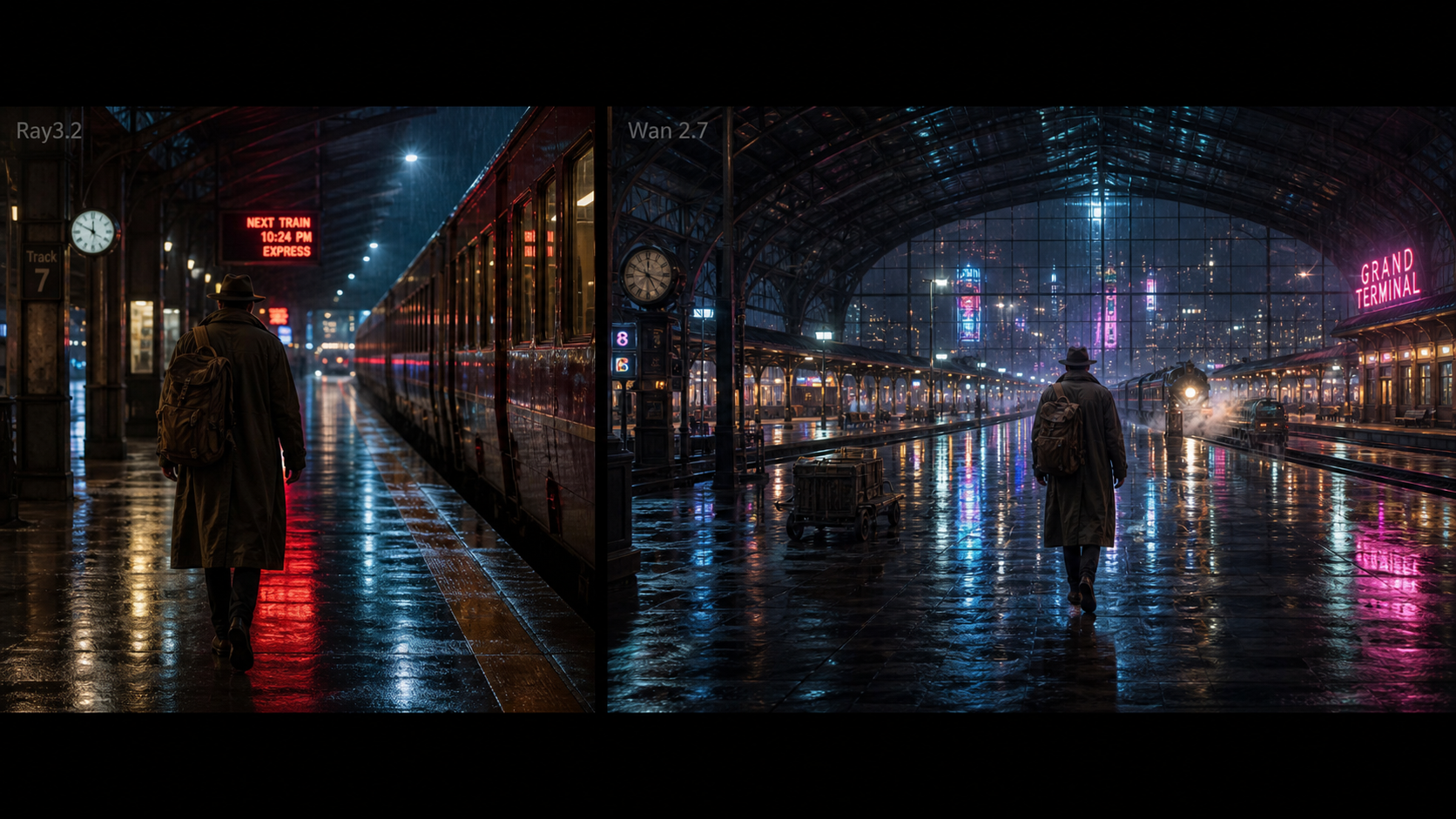
If you’re unsure, the best approach is simple: test the same prompt in both models via the best text-to-video model hub and compare the outputs side-by-side.
What Each Model Is Best At (Without the Hype)
Let’s break them down in plain language.
Veo 3.1: Great for “I have a scene in mind”
When you have a story idea (even a short one), Veo 3.1 tends to be the better starting point. Think:
- mini trailers
- cinematic moments
- controlled camera directions (push-in, dolly, slow pan)
- clear subject + action + mood
If your workflow begins with text, Veo 3.1 is usually the friendlier option for AI video generation with Veo 3.1.
And if you’re curious about video that feels more “finished,” audio matters more than people expect. Even a subtle ambient layer can make your output feel like a real clip, not a silent animation—so it’s worth exploring Veo 3.1 native audio generation.
Luma Ray2: Great for “I have a visual, now make it move”
Ray2 shines when your starting point is already visual:
- a character portrait
- a product photo
- a mood frame
- an existing video clip you want to transform
Ray2 is a strong choice for creators who iterate quickly and want that “dynamic lighting + motion” vibe. If you’re working from images, start with the Ray2 image-to-video model. If you’re working from footage, jump to Ray2 video-to-video.
Side-by-Side Comparison That Actually Matters
Instead of abstract benchmarks, here are the criteria that affect your day-to-day results.
1) Text-to-Video: Prompt adherence and story clarity
If your prompt reads like a short script, you’ll care about:
- whether the model keeps the subject consistent
- whether the action matches your words
- whether the camera instruction is respected
Veo 3.1 tends to feel more “obedient” for text-first prompting, so many creators start their narrative tests at AI video generation with Veo 3.1.
A simple trick: write your prompt in layers.
- Layer 1 (subject + setting): who/what and where
- Layer 2 (action): what happens
- Layer 3 (camera): how it’s filmed
- Layer 4 (style constraints): mood, lighting, realism level
If you want a quick place to compare both models using the same prompt format, use the best text-to-video model page as your baseline.
2) Image-to-Video: preserving composition vs adding motion
Image-to-video sounds simple (“animate this”), but a good result needs two things:
- preserve what matters (face, composition, outfit, product shape)
- add believable motion (hair, cloth, breathing, camera drift)
For this, Ray2 is often the most straightforward pick because it’s designed to move visuals. Try your image-led workflow via the Ray2 image-to-video model.
3) Video-to-Video: restyling and iteration
If you already have footage—maybe a quick shot, a product clip, or a previous generation—video-to-video can save you time.
Use it when you want:
- the same motion beats but a different visual style
- a seasonal reskin (holiday mood, neon cyber, vintage film)
- a faster way to generate variants for ads
That’s exactly where Ray2 video-to-video fits.
4) Audio: when sound changes the deliverable
A lot of creators skip sound until they realize the truth: audio makes AI video feel real.
If your goal is:
- a trailer clip
- a short cinematic scene
- a social post that needs instant “presence”
…it’s worth testing Veo 3.1 native audio generation at least once. Even basic ambient audio can turn a “cool visual” into something people actually watch longer.
5) Speed vs quality: draft fast, then do a final pass
The smartest workflow isn’t “perfect prompt first try.” It’s:
- Generate a rough draft quickly
- Pick the best variant
- Refine the prompt with one change at a time
- Run a final pass when you’re confident
This reduces wasted attempts and usually produces better output.
Recommended Workflows on DreamMachine AI (Step-by-Step)
DreamMachine AI makes things easier because you can keep your entire workflow in one place—upload inputs, prompt, test models, and iterate.
Workflow A: Text-to-Video (Script → shots → final)
Best when you want a scene from scratch.
- Open the best text-to-video model hub.
- Write a one-sentence scene goal (keep it simple).
- Add the camera move and lighting.
- Generate 2–4 variants.
- Pick the best one, then refine.
If you want the clearest text-to-video baseline, start with AI video generation with Veo 3.1.
Workflow B: Image-to-Video (Key visual → motion)
Best when you have a strong reference frame.
- Choose a clean image (sharp subject, uncluttered background).
- Upload it as the start frame.
- Prompt motion that matches the scene (wind, breathing, slow push-in).
- Generate and adjust motion intensity.
For this route, use the Ray2 image-to-video model.
Workflow C: Video-to-Video (Existing clip → new style / new energy)
Best for rapid creative iterations.
- Upload a short clip with clear movement.
- Prompt: “keep motion and framing, change style and atmosphere.”
- Generate 2–3 variants.
- Keep the best and refine one detail at a time.
Use Ray2 video-to-video for this.
Workflow D: Video with Sound (Visuals → audio-ready output)
Best when you want a result that feels finished.
- Start from a simple, cinematic prompt.
- Add a short audio cue: ambience + 1–2 sound elements.
- Keep visuals uncomplicated for your first attempt.
This is where Veo 3.1 native audio generation can be a fun advantage.
Copy-Paste Prompt Templates (Model-Agnostic)
Use these as starting points, then swap the bracketed parts.
Template 1: Cinematic text-to-video
Prompt: A [subject] in a [setting], [action]. Cinematic lighting, soft shadows, realistic textures. Slow camera [move] with shallow depth of field. Mood: [mood].
Example: A lone traveler in a rainy neon alley, slowly turning to look over their shoulder. Cinematic lighting, soft shadows, realistic textures. Slow camera push-in with shallow depth of field. Mood: tense, mysterious.
Template 2: Product showcase (UGC-ready)
Prompt: Close-up product shot of [product] on [surface]. Natural daylight, clean background. Subtle handheld feel. The product rotates slightly as light glints across details. Crisp focus, commercial style.
Template 3: Stylized scene
Prompt: A stylized [genre] scene of [subject] in [setting], [action]. Strong color palette, dramatic lighting, smooth motion. Camera [move].
Template 4: Video-to-video restyle
Prompt: Keep the original motion and framing. Transform the clip into [style]. Update lighting to [lighting]. Preserve subject identity and main shapes.
Use-Case Recommendations (So You Feel Confident)
Short film / trailer scenes
- Start with AI video generation with Veo 3.1 for scene clarity
- Add sound experiments via Veo 3.1 native audio generation
UGC ads / product promos
- Use AI video generation with Luma Ray2 to generate quick variations
- If you already have footage, lean on Ray2 video-to-video
Image-led animation (characters, posters, keyframes)
- Start with the Ray2 image-to-video model
Educational or explainer visuals
- If your prompt needs to be followed closely, start with AI video generation with Veo 3.1
Troubleshooting: Fix the Most Common Problems
Here are quick fixes that work across both models:
- Flicker / unstable details → reduce scene complexity; avoid too many moving objects
- Face drift → keep the camera move gentle; reduce “extreme” stylization words
- Prompt ignored → shorten prompt; move the most important instruction to the first sentence
- Motion feels floaty → specify weight: “grounded movement,” “realistic physics,” “subtle motion”
- Background gets messy → describe a simpler environment; “clean background” helps
- Too dramatic / too chaotic → remove intense adjectives; keep only one style direction
- Colors shift → lock a palette: “warm golden tones” or “cool blue tones”
- Camera too wild → choose one move only (push-in OR pan OR tilt)
- Subject changes → describe identity clearly (age, clothing, key features)
- Nothing looks cinematic → add lighting + lens language: “soft shadows,” “shallow depth of field,” “cinematic lighting”
FAQ
Which is better for text-to-video: Veo 3.1 or Ray2?
If your workflow starts from text and you want clearer scene control, many creators begin with AI video generation with Veo 3.1.
Can Ray2 do image-to-video and video-to-video well?
Yes—those are two of the most common reasons to use Ray2. Try Ray2 image-to-video model for still images and Ray2 video-to-video for transforming footage.
Does Veo 3.1 support audio generation?
If you want to explore sound-ready outputs, start with Veo 3.1 native audio generation.
What’s the easiest way to compare both models quickly?
Use the same prompt and test them back-to-back via the best text-to-video model hub.
More Tools to Try on DreamMachine AI (With Links)
If you’re building a full AI video workflow, it helps to have a “creator switchboard” where you can test different models and inputs quickly.
- Start with the main hub to compare and generate: best text-to-video model
- Veo model page: AI video generation with Veo 3.1
- Ray2 model page: AI video generation with Luma Ray2
If you want to explore more tools on the platform, browse: https://dreammachineai.online/
Final Takeaway
If you want a simple rule:
- Text-first storytelling + audio experiments → Veo 3.1
- Image/video-led creation + fast variations → Ray2
And the best part is you don’t have to “pick forever.” Use DreamMachine AI to treat them like two complementary tools: one for clean narrative control, one for visual transformation and iteration.
Whenever you’re ready, run one prompt through both models, save the best output, and refine from there—you’ll get better results in fewer tries.