If you want to turn two separate photos into a short emotional clip, DreamMachine AI offers a simple way to do it. Its AI hug video tool is designed for people who want to create reunion edits, couple content, family keepsakes, friendship posts, or memorial-style videos without learning a complicated editing workflow.
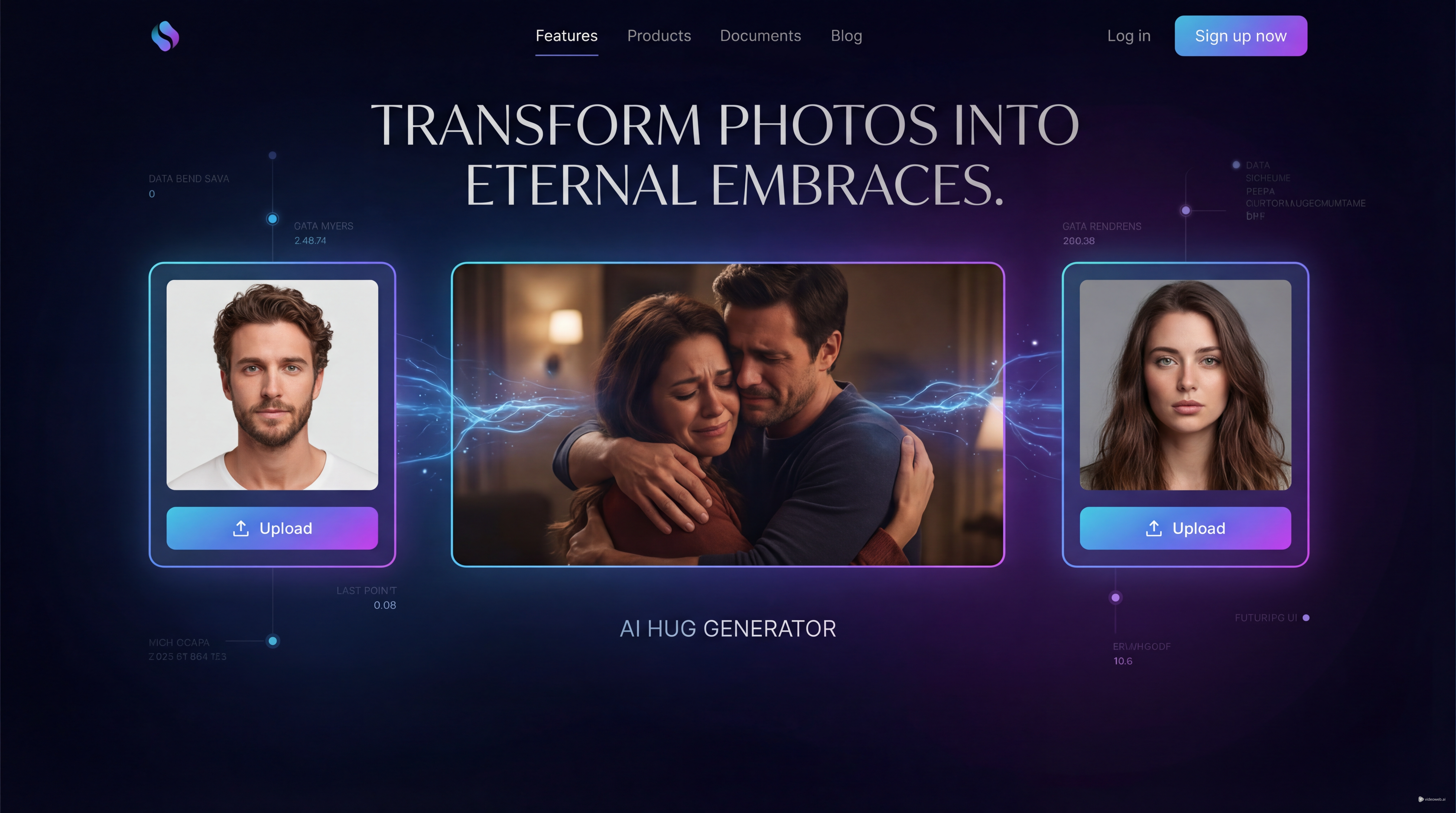
The core idea is straightforward: upload one image for the person on the left, upload another for the person on the right, preview the merged composition, and generate the final clip. For anyone searching for an AI video hug workflow that feels fast and accessible, this tool is one of the easiest places to start.
What an AI hug video is best used for
An AI hug generator like this is not just for romantic content. It works well for many emotional and creative scenarios. You can use it to make a long-distance reunion clip, a birthday surprise, a friendship edit, a family memory post, or a tribute video that brings two people together in a way a still image cannot.
What makes a hug AI video appealing is the emotional clarity of the action. A hug is universally readable. Even a short clip can feel warm, personal, and instantly shareable. That is why this format works especially well for short-form platforms, slideshows, and private keepsake videos.
At the same time, results depend heavily on the photos you choose. The tool can only work with what you upload, so preparation matters more than many users expect.
Choose better photos before you upload anything
The fastest way to improve an AI hug video is to start with better source images. Try to select two photos with similar lighting, similar camera angle, and clean separation between the person and the background. If one photo is a bright outdoor selfie and the other is a dark indoor portrait, the final motion can look less natural.
Framing also matters. Ideally, both people should be clearly visible from about the waist or chest upward, unless the tool works better with full-body shots in your test. Avoid photos where faces are heavily cropped, hands cover the torso, or the subject is turned too far away from the camera. The more readable the body posture is, the easier it is for the AI video hug workflow to create a convincing interaction.
A few quick tips help a lot:
- Use high-resolution photos whenever possible.
- Pick images where the subject is not blocked by furniture, pets, or other people.
- Avoid cluttered backgrounds if you want the merge to look cleaner.
- Try photos where both people look relaxed rather than dramatically posed.
If you are making a sentimental video, choose images with matching emotional tone. A smiling portrait paired with another smiling portrait usually works better than combining a serious passport-style image with a playful selfie.
How to use the tool on DreamMachine AI
The interface shown on DreamMachine AI is simple. You will see a left image box, a right image box, a merged preview area, and a submit button. This makes the AI hug generator approachable even for first-time users.
Start by uploading one photo into the left slot and the second photo into the right slot. Once both are added, check the preview area carefully. This is where you can quickly judge whether the pairing makes sense before committing to the result.
When reviewing the preview, look for three things: relative size, face direction, and spacing. If one person appears much larger than the other, the embrace may feel awkward. If both faces point away from each other, the final hug AI video may feel less natural. If the bodies are too far apart in the merged image, the motion can look forced.
After that, click submit and let the system process the clip. Depending on the platform queue and workload, generation may take a little time. Once the video is ready, review it with a critical eye instead of assuming the first output is the best one.
How to tell whether the merged result works
A good AI video hug should feel emotionally readable at a glance. Even if the animation is short, viewers should instantly understand that the two people are moving toward an embrace rather than drifting into each other unnaturally.
The best outputs usually have a few qualities in common. The body sizes look proportionate. The faces remain recognizable. The hand placement does not feel too strange. The motion feels soft rather than jerky. And most importantly, the final scene preserves the emotional identity of the original photos.
If the result feels off, do not assume the tool failed completely. Often the issue is just the input pair. Try swapping the left and right images. Try a different crop. Try a photo with a simpler pose. Many users get better results on the second or third attempt because they learn which kinds of images the AI hug video handles best.
Common problems and easy fixes
Most weak results come from a few predictable issues. If one subject is leaning too much, the interaction may look unstable. If hair blends into a dark background, the edges may become messy. If one person is photographed from above and the other straight on, the composition may feel physically inconsistent.
Here are a few practical fixes:
Mismatch in scale: choose two photos with similar crop distance.
Awkward hand or arm motion: use images with visible shoulders and upper body posture.
Face distortion: avoid extreme filters, beauty effects, or very compressed images.
Unnatural emotion: pair photos with similar mood and eye direction.
Messy merge: switch to cleaner backgrounds or simpler outfits.
When testing a new pair, think less like a photo editor and more like a casting director. You are choosing two images that must perform together. The more visually compatible they are, the more convincing the final AI video hug will feel.
Best ways to use an AI hug video after generation
Once your clip is ready, you can use it in several ways. It works well as a short social post, a reel insert, a slideshow transition, a birthday message, or part of a memorial edit. A polished hug AI video can also be combined with music, captions, or voiceover to create a more complete emotional story.
For social media, keep the caption simple and let the visual do the work. For private sharing, consider pairing the clip with a meaningful date, short message, or memory line. If you are making content for someone else, export a few versions if possible so you can choose the one that feels most natural.
In the end, DreamMachine AI’s AI hug generator is appealing because it removes most of the technical friction from a very emotional kind of edit. You do not need advanced animation skills to make something touching. You just need two compatible photos, a little patience, and the willingness to regenerate until the result feels right.
Recommended Tools and Models
- Photo-to-Video for animating a single still image when you do not need a two-person hug effect
- Veo 3.1 AI Video Generator for more cinematic prompt-based video creation
- Wan 2.5 AI Video Generator for broader motion and scene-generation workflows
- Vidu AI Video Generator for alternative image-to-video experiments
- Image to Video for general still-image animation
- AI Hug Video as another dedicated hugging-video option
- AI Hugging Generator for a similar two-photo emotional video workflow
Related Articles
- How to Use DreamMachine AI’s AI Video Generator: A Practical Guide for Text and Image Workflows
- Seedance 2.0 Video Generation Guide: How to Create Better AI Videos
- Veo 3.1 vs Luma Ray2 on DreamMachine AI: Which AI Video Model Fits Your Workflow?
People Also Read
- Veo 3.1 Video Generation Guide: How to Create Cinematic Clips
- The 2026 Image-to-Video Guide: Best Models and Prompts
- Text-to-Video Guide: How to Choose Models and Create Better Clips
- How to Create Heartwarming Videos with an AI Hug Video Generator
- AI Video Generator Guide: Best Models, Features, and Costs