AI video generation has moved past novelty. With models like Veo 3.1, creators are no longer just testing “cool clips”—they’re exploring workflows that resemble real pre-production, visual ideation, and even early-stage filmmaking.
If you’re curious about what Veo 3.1 can actually do in practice, one of the simplest ways to get started is to try Veo 3.1 in Dream Machine AI. The platform offers a clean, focused interface that lets you test text-to-video and image-to-video generation without unnecessary friction.
This article walks through what Veo 3.1 is, how Dream Machine AI fits into the workflow, and how creators—from casual users to filmmakers—can get meaningful results quickly.
What Is Veo 3.1 and Why Are Creators Paying Attention?
At its core, the Veo 3.1 video model is designed for higher-quality, more coherent AI video generation. Compared to earlier generations, it focuses on smoother motion, better scene continuity, and more reliable interpretation of prompts.
Rather than treating video as a collection of animated frames, Veo 3.1 attempts to preserve visual logic across time—how subjects move, how cameras drift, and how scenes evolve. That makes it especially appealing for creators who care about storytelling, not just visual spectacle.
Why Use Dream Machine AI to Try Veo 3.1?
There are many places to read about Veo 3.1, but far fewer that make it easy to actually experiment. Dream Machine AI fills that gap by offering a streamlined way to access the Veo 3.1 AI video generator in a creator-friendly environment.
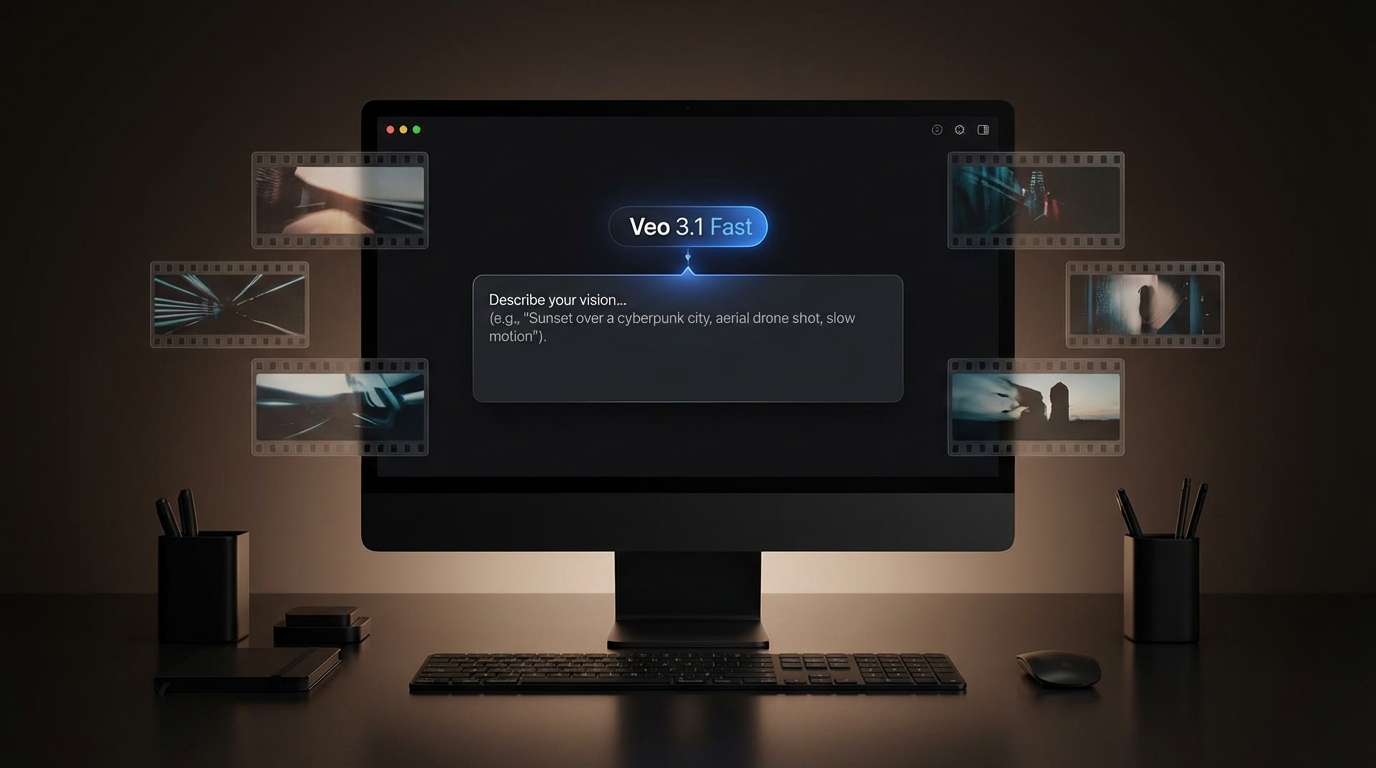
The interface keeps things simple:
- Select the Veo 3.1 Fast model
- Choose text-to-video or image-to-video
- Set resolution and aspect ratio
- Write or refine your prompt
- Generate and iterate
There’s no sense of wrestling with technical overhead. You can focus on what matters—testing ideas.
Getting Started: How to Try Veo 3.1 in Dream Machine AI
To begin, head directly to try Veo 3.1 in Dream Machine AI.
From there, the setup process is intuitive:
-
Choose the model
Select “Veo 3.1 Fast” to balance speed and quality. -
Decide your input type
You can start from text alone or upload an image as a starting frame. -
Adjust output settings
Most users begin with 720p and a 16:9 ratio, which works well for testing and previews. -
Write your prompt
Keep it clear and intentional—more on that below. -
Generate and refine
Expect iteration. The best results usually come after two or three small prompt adjustments.
Text-to-Video With Veo 3.1: How to Get Better Results
Using text to video Veo 3.1 is ideal when you’re exploring ideas rather than locking visuals. It’s especially useful for concept trailers, mood tests, or narrative sketches.
A strong prompt usually follows a simple structure:
- Subject: who or what is on screen
- Action: what is happening
- Environment: where it takes place
- Camera and mood: how it feels visually
For example, instead of writing a long paragraph, think in cinematic beats:
“Wide cinematic shot of a lone figure walking through a foggy forest at dawn, soft natural lighting, slow camera push-in, calm and mysterious tone.”
Short, focused prompts often outperform overly detailed ones.
Iteration Tips
If a result feels “off,” change only one thing at a time—camera motion, lighting, or pacing. Veo 3.1 responds better to clarity than complexity.
Image-to-Video With Veo 3.1: Bringing Stills to Life
If consistency matters—characters, products, or specific designs—image to video Veo 3.1 is usually the better choice.
By starting with an image, you give the model a visual anchor. This helps reduce randomness and keeps identity more stable across frames.
For best results:
- Use clean, well-lit images
- Avoid cluttered backgrounds
- Add subtle motion instructions (camera drift, wind, ambient movement)
A good rule of thumb is to limit yourself to two or three types of motion. Overloading the prompt can make the animation feel chaotic.
Veo 3.1 for Filmmakers: Beyond “AI Clips”
One of the most interesting use cases for Veo 3.1 for filmmakers isn’t finished scenes—it’s pre-production.
Filmmakers are using Veo 3.1 to:
- Visualize storyboards and shot ideas
- Test lighting and mood before a shoot
- Create pitch visuals for investors or collaborators
- Experiment with transitions and visual rhythm
Instead of thinking in paragraphs, filmmakers tend to prompt in shots:
“Medium shot, handheld camera, low-contrast lighting, subject pauses before turning toward the camera.”
This mindset aligns well with how Veo 3.1 interprets instructions.
Choosing Between Text-to-Video and Image-to-Video
If you’re unsure which approach to use, a simple guideline helps:
- Use text-to-video when exploring ideas
- Use image-to-video when refining visuals
- Combine both when developing a concept—start with text, then lock it with images
Dream Machine AI makes switching between the two easy, which encourages experimentation rather than commitment too early.
Common Issues and How to Fix Them
Even strong prompts can misfire. Some common problems include jittery motion, framing issues, or visuals that feel overly “AI-like.”
Quick fixes often include:
- Simplifying motion instructions
- Specifying camera framing (“wide shot,” “centered subject”)
- Reducing stylistic buzzwords
- Reusing similar phrasing across iterations
Because the Veo 3.1 video model is sensitive to prompt structure, small changes can make a noticeable difference.
Final Thoughts: Is Dream Machine AI Worth Using for Veo 3.1?
If your goal is to understand Veo 3.1 through hands-on experimentation rather than theory, Dream Machine AI is a solid place to start. The platform lowers the barrier to entry and encourages creative iteration instead of technical guesswork.
Whether you’re testing ideas, building pitch visuals, or simply exploring what modern AI video can do, it’s worth taking a few minutes to try Veo 3.1 in Dream Machine AI and see how it fits into your workflow.
AI video generation is evolving quickly—but the most useful tools are still the ones that let creators think clearly, experiment freely, and iterate fast.