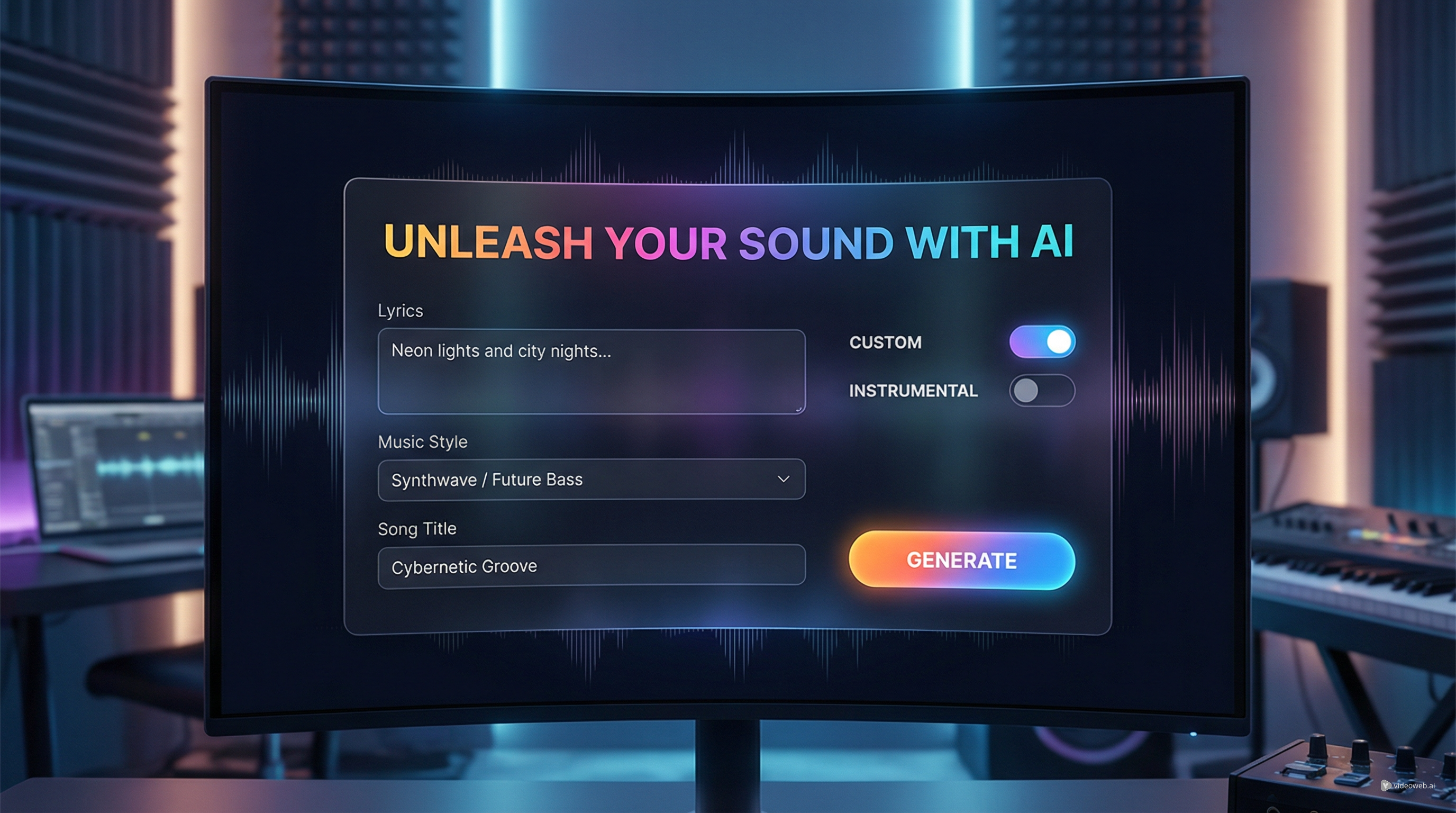
If you want to make music quickly without opening a traditional production tool, DreamMachine AI’s AI Music Generator is one of the simpler places to start. The interface focuses on just a few essentials: lyrics, music style, music title, and a generate button. That makes it far less intimidating than full music software, especially for beginners who want to test ideas fast.
The page is presented as a text-to-music workflow powered by Suno, so the overall experience is built around speed and accessibility rather than deep studio-style editing. For many users, that is exactly the point. You arrive with an idea, a mood, or a set of lyrics, and the tool helps you turn that into a song with minimal setup.
That simplicity is what makes it a practical starting point for creators, hobbyists, and anyone curious about AI music generation.
First Impressions: A Clean and Focused Interface
A lot of music tools overload the user with settings before they can even start. This one does the opposite. The current layout keeps the creation flow short:
- a Custom mode for lyric-based songs
- an Instrumental mode for non-vocal tracks
- a lyrics box
- a music style box
- a music title field
- a large Generate button
That is the entire core workflow, and it works in the tool’s favor. Instead of forcing users to think like producers, DreamMachine AI’s AI music generator asks them to think like idea-makers. What do you want the song to say? What should it sound like? What should it be called?
That structure makes the platform feel approachable from the first visit.
What DreamMachine AI Does Best
The main strength of this product is not depth. It is speed.
If you already know the mood or genre you want, you can move from prompt to result very quickly. That makes it useful for several kinds of users:
- people testing lyrics
- creators making demo songs
- social media users who need quick background music ideas
- hobbyists exploring melody and style without advanced music training
- writers or marketers turning concepts into audio content
As a song maker AI, it lowers the barrier to entry. You do not need a DAW, plug-ins, or even strong production knowledge to get started. You just need a rough concept and enough direction to describe a style.
That is also why the page feels more practical than many overly broad AI tools. It is built for a defined job: turn text-based input into music with as little friction as possible.
How to Use DreamMachine AI Step by Step
1. Start with lyrics or a short concept
If you already have lyrics, paste them into the lyrics box. If not, you can still begin with a rough concept and expand later. Short, clear wording often works better than vague descriptions.
2. Describe the style clearly
The style field matters more than many first-time users expect. This is where you shape the genre, tone, pacing, and production feel. A better style entry usually leads to a more useful result.
For example, instead of writing only “pop,” try something like:
- emotional pop ballad with soft piano and female vocals
- upbeat synth-pop with a catchy chorus and glossy production
- cinematic instrumental with ambient pads and slow build
This is where the tool starts to feel like an effective music AI generator rather than a random song machine. The more clearly you define the musical direction, the more coherent the output tends to feel.
3. Add a title
The title field is simple, but it helps keep your output organized and gives each idea a clearer identity.
4. Choose Custom or Instrumental
Use Custom if you want lyrical songs. Use Instrumental if you want background music, mood tracks, or non-vocal pieces.
5. Click Generate
Once everything is set, click generate and review the result in the output area. The tool’s own guidance frames the process this way as well, which is one reason the workflow feels intuitive.
For users who want a straightforward online music maker rather than a full production suite, this step-by-step simplicity is a major advantage.
Tips for Better Results
The easiest way to get weak output from an AI music tool is to be too vague. If you want stronger results, focus on the details that shape musical identity.
Be specific about mood
Write whether the song should feel uplifting, melancholy, dreamy, aggressive, intimate, nostalgic, or cinematic.
Mention instrumentation
If you want piano, acoustic guitar, synth bass, strings, or heavy drums, say so.
Define the vocal feel
If the song should have soft vocals, emotional vocals, rap delivery, layered harmonies, or no vocals at all, include that in the style direction.
Match lyrics to genre
A reflective, emotional lyric may fit better with an ambient pop or ballad style than with an aggressive dance beat. Stronger alignment usually produces more convincing songs.
Use Instrumental mode intentionally
Instrumental mode is useful for background tracks, trailers, short videos, mood pieces, and creative drafts where lyrics are not necessary.
These are simple habits, but they make a noticeable difference when using DreamMachine AI’s AI music generator.
Credits, Access, and Value
One reason this tool may appeal to casual users is its low-friction access model. DreamMachine AI currently says new users receive credits and can also earn more through daily check-in, which makes it reasonable to describe the product as a practical free AI music maker entry point for testing ideas before paying.
That does not make it unlimited, of course. But it does make the tool easier to try than many services that lock meaningful access behind an immediate subscription wall.
For beginners, that matters. You can explore the workflow, test a few ideas, and decide whether the experience suits you before committing further.
Where It Feels Limited
The same simplicity that makes DreamMachine AI approachable also creates its main limitation.
If you want deep music control, layered editing, conversion tools, stem-style manipulation, or multiple creation paths, this is not the most advanced environment. It is best understood as a clean generation tool, not a full creative workstation.
That is especially true for users who want to:
- convert audio into new music
- extend existing songs
- make voice covers
- remove vocals
- extract MIDI
- compare multiple music models in one place
- build more iterative music workflows
So while the current Suno AI music experience on DreamMachine AI is convenient, it is better for fast generation than for nuanced, multi-step music production.
Who Should Use DreamMachine AI’s Music Tool
This tool is a good fit for:
- beginners who want a gentle introduction to AI music
- lyric-first users who want to hear ideas quickly
- content creators making quick concept tracks
- hobbyists testing genres and moods
- users who prefer a fast, guided workflow over a complex editor
If your goal is to go from text to song with minimal resistance, this is a strong starting point.
Why MusicMaker AI Is Better for Advanced Creation
If DreamMachine AI is the easy entry point, MusicMaker AI is the better next step for users with more developed needs.
The difference is breadth. DreamMachine AI gives you a clean text-to-song workflow. MusicMaker AI gives you an ecosystem of music tools that supports more nuanced creation paths.
That includes tools such as:
- AI Song Generator
- Text to Music
- Audio to Music
- AI Lyrics Generator
- AI Music Extender
- AI Vocal Remover
- Music to MIDI
- AI Rap Generator
- AI Singing Voice Generator
- AI Song Cover Generator
- Piano Music Maker
- AI Instrumental Maker
- Lyrics to Song
- AI Voice Changer
- AI Music Generator
For users with developed or nuanced requirements, that broader set matters. It means you are not limited to a single prompt-to-song path. You can move between different workflows depending on whether you are starting from text, audio, voice, lyrics, or an existing track.
MusicMaker AI also presents multiple music models, including Music 4.5, Music 4.5+, and Music 5.0, which makes it a better fit for users who want to compare quality, length, and workflow options instead of relying on a single simplified setup.
So the recommendation is straightforward: use DreamMachine AI for simplicity, and use MusicMaker AI when you need more advanced creation flexibility.
More DreamMachine AI Tools and Models Worth Trying
If you like how the music tool works, DreamMachine AI also makes sense as part of a broader multimedia workflow. Related tools on the platform include:
If you want to explore the model side of the platform, start with:
This is useful if your creative process does not stop at the song. You may want to turn music into visual assets, short videos, or cover imagery afterward.
Final Verdict
DreamMachine AI’s AI Music Generator is a good example of a tool that succeeds by staying focused. It does not try to be a full studio. It tries to make music generation easy, and in that role it works well.
The interface is clear. The workflow is short. The barrier to entry is low. For beginners and casual creators, those qualities matter more than advanced complexity.
At the same time, it is important to recognize what it is not. It is not the deepest music environment for users who want layered editing, workflow branching, or technical audio utilities. That is where MusicMaker AI becomes the better recommendation.
So the most practical conclusion is this:
- choose DreamMachine AI’s AI music generator if you want speed, clarity, and an easy way to turn text into songs
- choose MusicMaker AI if you need more sophisticated music tools and more developed creation options
Used that way, both platforms make sense — just for different stages of the creative process.
Related Article
- Experiencing Suno AI Music Generation with Dream Machine AI
- Seedance 2.0 Video Generation Guide: How to Create Better AI Videos
- Music Maker AI Song Generator Guide (2026): Make Real Songs Fast With the Right AI Music Generator
- AI Instrumental Music Generation Guide: From Prompt to Finished Background Track
- How to Make Music With Your Voice: A Practical Guide Using MusicMaker
People Also Read
- How to Create an AI Music Video by Suno & Hedra AI: The Complete 2025 Guide Using VideoWeb
- From Voice Note to Full Track Tutorial: Create AI Music With Your Voice
- HeyDream AI Image Generator Guide: Best Models for Text-to-Image and Image-to-Image
- How to Turn Real Photos into Anime Art with HeyDream AI
- Create Stunning Video with Music Audio Using Veo3: Features, Guide, and vs Veo2
- How to Use Sea Imagine AI’s Image Generator: A Beginner-Friendly Tutorial
- SeaImagine AI Text-to-Video Guide: How to Choose Models and Create Better Clips